Keys and security
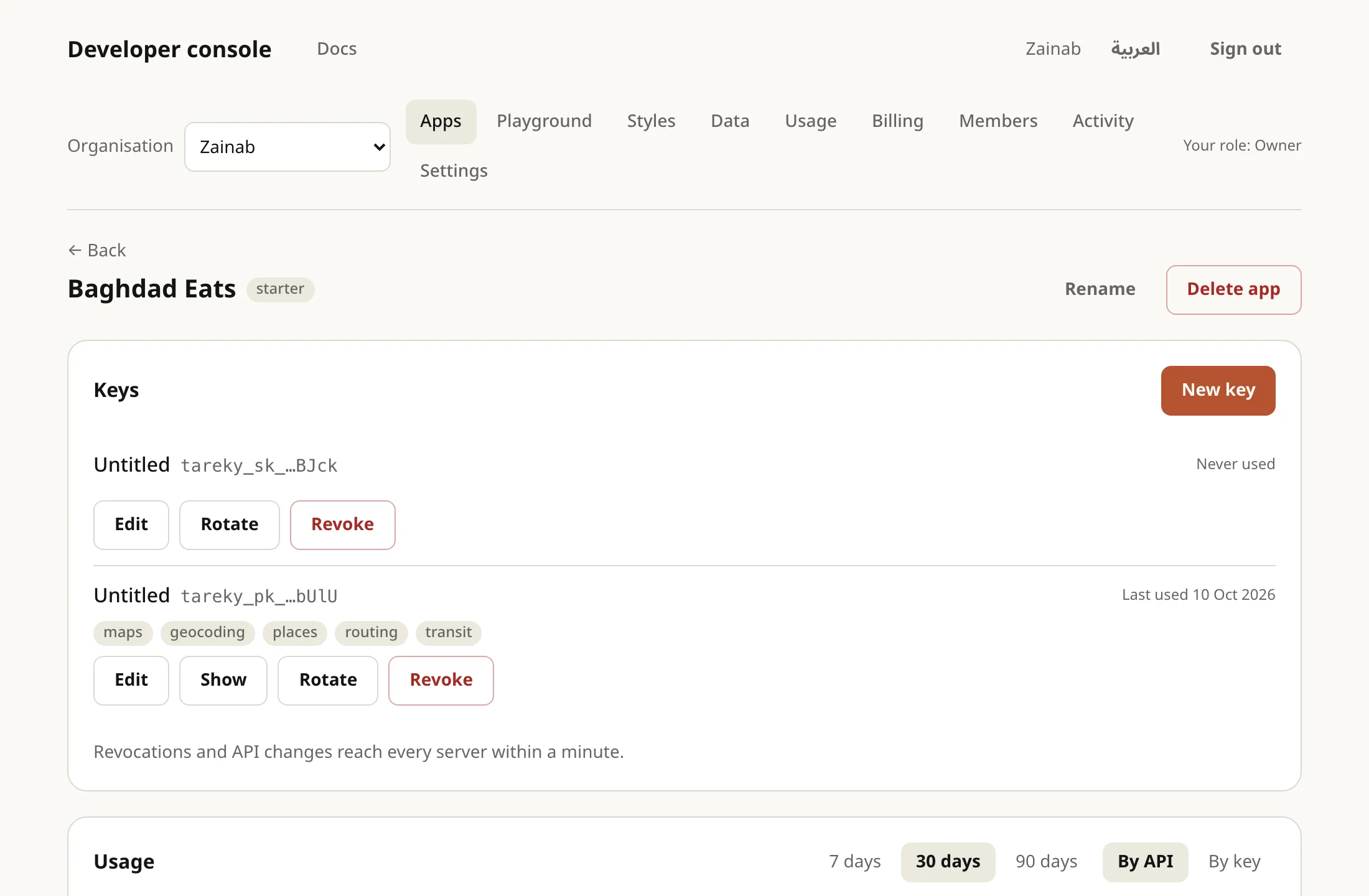
Every request needs a key. You create and manage keys in the developer console; each app has its own.
Two kinds of key
Section titled “Two kinds of key”| Kind | Prefix | Where | How it’s sent |
|---|---|---|---|
| Public | tareky_pk_ |
Browsers and apps | ?access_token=… or Authorization: Bearer … |
| Secret | tareky_sk_ |
Servers only | Authorization: Bearer … only |
- A public key ships inside your page or app, so anyone who looks can find it. Protect it by restricting it to your site’s origins (
https://example.com,https://*.example.com) and to the fewest APIs it needs. - A public key inside a mobile app can be restricted to it:
ios:com.example.appandandroid:com.example.app(optionally/and the signing certificate’s SHA-1). The app sendsX-Ios-Bundle-Identifier, orX-Android-PackageandX-Android-Cert, as with Google’s keys. This is soft protection, since anyone can send those headers, but a key lifted from your app doesn’t work as is in another. A request with an origin (a browser) is held to your origins instead; refused app requests getapp_not_allowed. - A secret key never goes in a URL: a request carrying one in
access_tokenis refused. Restrict it to your servers’ addresses (203.0.113.7, or a range like203.0.113.0/24; IPv6 too) and a copy that leaks is useless anywhere else: other addresses getip_not_allowed. - You can show a public key again in the console. A secret key is shown once, when it’s created; we keep only its hash.
Allowed APIs
Section titled “Allowed APIs”Each key has at least one of maps, geocoding, places, routing, transit, probes, feeds, feeds-write, tracking, traffic (traffic) and tokens (minting short-lived tokens). Anything else is refused with scope_not_allowed.
Short-lived tokens
Section titled “Short-lived tokens”A token your server mints from a secret key and hands to a browser or an app, instead of shipping a long-lived public key. It lasts 15 minutes to 24 hours, carries at most its key’s APIs (you pick fewer), can be locked to your origins, and is billed to the key that minted it. Revoking that key ends its tokens within a minute.
curl -X POST https://api.tareky.com/v1/tokens \ -H "Authorization: Bearer tareky_sk_…" -H 'Content-Type: application/json' \ -d '{"scopes": ["geocoding"], "allowedOrigins": ["https://example.com"], "ttlSeconds": 3600}'The key needs the tokens API ticked. The answer’s token (tareky_tk_…) is used like a public key: ?access_token= or Authorization: Bearer. A token can’t mint another, and routes that need a secret key refuse it.
Expiry, rotation and revocation
Section titled “Expiry, rotation and revocation”- Expiry: 30, 90 or 365 days, or never.
- Rotation: a new key with the same settings; the old one keeps working for 24 hours while you deploy the new one.
- Revocation: the key stops on every server within a minute.
- An app can have at most 25 live keys.
If a key leaks
Section titled “If a key leaks”Revoke or rotate it in the console at once. If we find one published, we may stop it ourselves; you get an email with the reason, and it shows in your organisation’s activity log.
A secret key pushed to a public GitHub repository is stopped within seconds of the push: GitHub’s secret scanning reports tareky_sk_ tokens to us, and we revoke the key and email you where it was found. Public keys are left alone, since they are public by design.
Organisation security
Section titled “Organisation security”Owners and admins set these in the console, under Settings → Security:
- An authenticator code from every member. Asked once per session, before any of the organisation’s pages open; a member without an authenticator app sets one up there and then. Turning it on takes entering your own code first, so nobody locks the organisation out by accident. Setting up an authenticator follows a fresh sign-in; each code works once, and five wrong codes pause checks for 15 minutes. Lost the phone? Write to support@tareky.com to reset it.
- The longest session, from 1 to 720 hours. After it, members sign in again.
- Your domains. Add
example.iqand the console shows a TXT record to create at_tareky-verification.example.iq; once DNS has it, press Verify now. One organisation at a time holds a domain verified, and it is checked again every week: a domain whose record is gone stops being verified. Single sign-on finds your organisation by these domains. - The activity log as a file, under Activity: CSV (opens in a spreadsheet) or NDJSON (one JSON object per line), oldest first.
None of these settings affects API keys: they keep working for your servers and apps.
Single sign-on (OpenID Connect)
Section titled “Single sign-on (OpenID Connect)”Connect Microsoft Entra ID, Google Workspace, Okta, Keycloak or any OpenID Connect provider under Settings → Identity provider:
- Verify your domain (above).
- At your provider, register a web application with the redirect URI the console shows (
https://api.tareky.com/auth/sso/callback) and the scopesopenid email profile. It authenticates with its client secret in the request body (client_secret_post). - Enter the issuer URL, client ID and secret. The provider’s configuration is read before anything is saved.
- As an owner or admin, press Try signing in through it. After that you can require single sign-on.
SAML works too: choose it in the same card, give your provider the ACS URL and entity ID shown there, then paste its metadata (or its URL).
Only owners set up single sign-on and directory sync, and turn the requirement on or off: whoever sets the provider decides who can sign in.
People whose email is at one of your verified domains sign in from the console’s sign-in page with their work email, and join the organisation the first time with the role you chose. Someone who already has an account here with that email confirms it once, by signing in to it, before it is tied to your provider. Someone you remove stays removed: signing in again doesn’t bring them back. A single sign-on session asks your provider again each day. Your provider must send the email claim (in Entra, add it as an optional claim); addresses at other domains are refused. Signing in through your provider doesn’t replace the authenticator code if you also ask for one (we can’t tell whether your provider asked for a second factor): to rely on your provider’s MFA, require single sign-on and leave the code off. Owners can always sign in another way, in case the provider breaks.
Directory sync (SCIM)
Section titled “Directory sync (SCIM)”Let your identity provider add and remove members: under Settings → Directory sync, choose your provider (Entra ID, Okta, OneLogin, JumpCloud or any SCIM 2.0 provider) and copy the SCIM endpoint and token into its provisioning settings.
- People you assign to the app there join the organisation, with the role of their strongest group (give each group a role in the console) or the default role. Deactivated people leave, and their single sign-on sessions end.
- Only addresses at your verified domains are added, never a staff account, and owners are never changed by the directory.
- Disconnecting the directory leaves members as they are.
Legacy keys
Section titled “Legacy keys”The x-access-key-id / x-secret-access-key headers keep working until their announced sunset.